1. Remove the camera and the bundled USB cable from the box.
2. Plug in the type-C end of the bundled USB cable to the camera, make sure it’s plugged in tightly.
3. Plug in the type-A end of the bundled USB cable to the computer, make sure it’s plugged in tightly.
4. Mount the camera onto a display or monitor using clip mount or tripod mount.
5. Adjust the camera shooting position by adjusting the swivel mount.
6. Turn on a video conferencing app (Zoom, MicroSoft Teams, Google Meet, Cisco Webex, etc) or a camera app (Windows Camera, Mac QuickTime) to power up and access the camera video.Innex C470 is indeed producing images and video at 4k resolution. If you open a camera app such as Windows Camera in Windows 10, you can see that the highest available resolution is 3840*2160. You may feel otherwise due to the following reason:
-
C470 has a wide angle lens of 120-degree which means the 4k resolution is covering a much larger area than the average camera which is around 78-degree. Compared to a 1080P cam with narrow lens FoV at 78-90 degree, C470 may not produce a significant increase of clarity due its 4k resolution density being diluted by a larger area covered. On the other hand, the 120 degree wide angle lens provides advantages such as wider crowd capture, or freedom of movement within the scene.
-
Display monitor resolution is less than 4k. The picture clarity of a 4k image is not visible on a 1080p display.
-
Insufficient lighting in the scene which can create noises on the image which may cause clarity loss.
-
Remove fingerprints, dirts from the camera lenses.
-
-
Please check if the USB A, and USB C end is securely plugged into the computer and camera.
-
Try a different USB port on the computer.
-
Try a different computer.
-
-
Go to C220 download section on https://funtechinnovation.com/downloads/ to download the Innex Camera (VAP Studio).
-
Connect your C220 to your computer.
-
Start VAP Studio by clicking VAP Studio Icon.
-
Click the update tab (1), and click online update (2), then click update now (3).

-
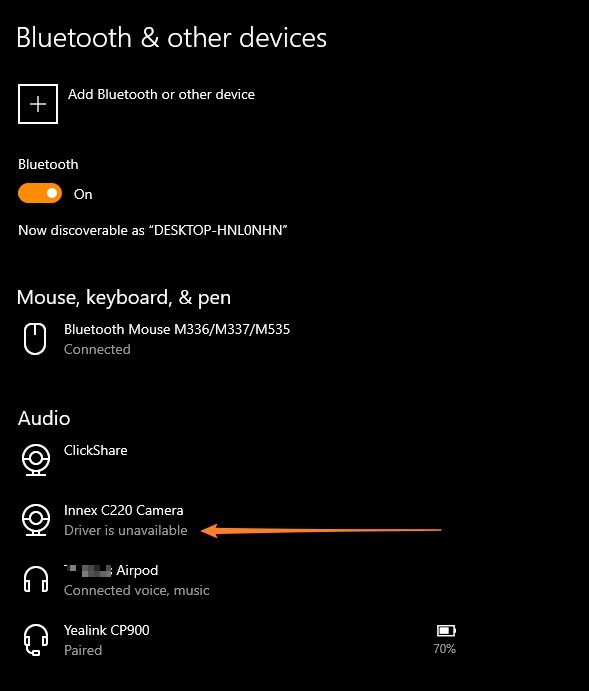
Please note that the status indicated as “Driver is unavailable” does not mean there is any issue with C220’s audio.
If your C220 has firmware prior to the 2021 Sept. 27th release, it might be shown as “Driver is unavailable” in Audio under Bluetooth & other devices setting.
Simply update C220 with firmware released on or later than 2021 Sept. 27th to get rid of this status.