

Innex Camera (VAP Studio)
Innex Camera is a camera setting software that handles camera firmware update, image setting, EPTZ and auto-framing setting. It works with Innex C220 and C470. Innex Camera is available for both Windows and Mac – it can be downloaded at https://funtechinnovation.com/software/innex-camera-vap-studio/
-
Please update your VAP Studio to the latest version to fix this issue.
-
If you are using Windows computer, please download Microsoft Visual C++ Redistributable (Visual Studio 2015, 2017, 2019, and 2022 x64) from the link here: https://learn.microsoft.com/en-us/cpp/windows/latest-supported-vc-redist?view=msvc-170
and run the VAP Studio software again. Our software is created using Microsoft Visual Studio, so it must be installed in your computer in order to run VAP Studio
properly.
-
If you still experience the same problem after updating to a version released on or later than 2021 Sep. 27th, please contact technical support by leaving us a message https://funtechinnovation.com/faq/

-
To adjust image quality for C470 and C220 to better match your environment and preference, you can download and use the Innex Camera (VAP Studio) https://funtechinnovation.com/downloads/
-
Connect your camera to your computer.
-
Start VAP Studio by clicking on the VAP Studio icon.
-
Click the video tab (1), (2) Click on Image and adjust each value by adjusting the slider. (3) If a reset is required, simply click on reset to reset the value to default(4).
4. The image setting adjustment will be saved into the camera and the camera will retain the adjustment even after it’s disconnected from the pc.

-
To adjust camera FOV (field of view) and ROI (region of interest) for to better match your environment and preference, you can download and use the Innex Camera (VAP Studio) at https://funtechinnovation.com/downloads/
(Please note that this feature is currently available only with C470)
-
Connect your camera to your computer.
-
Start VAP Studio by clicking on the VAP Studio icon.
-
Disable auto-framing: (1) Click the video tab, (2) Click on Auto Framing tab, (3) Click on auto-framing button so it is slid to the left.
4. Adjust with EPTZ: (1) Click on Video, (2) Click on Digital Zoom, (3) Zoom in/out using the plus and minus icon, (4) Pan and tilt using the direction control, (5) Reset to default position (if necessary), (6) Take a photo to validate current FOV and ROI (if necessary), (7) Open folder location to access the photo (if necessary).
5. The camera remembers your preferences after reboot so you only need to set it once.


-
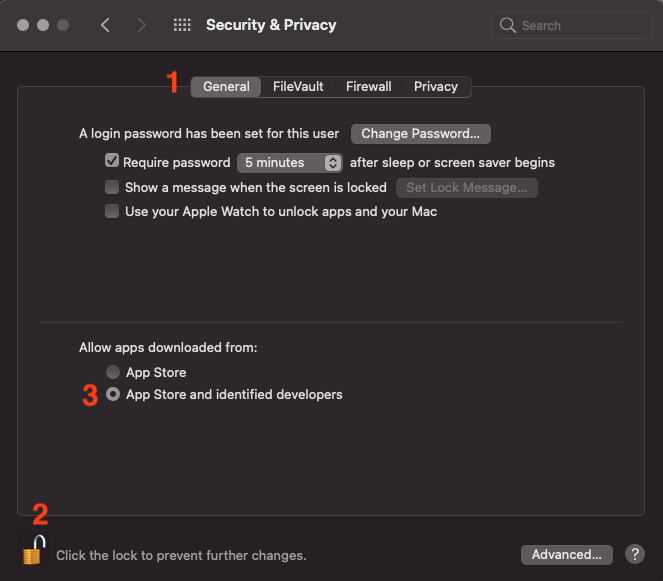
Mac might block the software that is not from the APP Store. Please follow below steps to launch the software
1. Go to System & Preference – Security & Privacy
2. (1) Click General (2) Click the lock to make changes (3) Select App Store and identified developers. And leave this window first.
3. Launch the VAP Studio. You’ll see the same pop-up message. Then click (1)”Open Anyway”, (2) Open.


Please follow the steps below to run the software automatically at startup in Windows.
-
Select the Start button and scroll to find the app.
-
Right-click the app, select More, and then select Open file location. This opens the location where the shortcut to the app is saved.
-
With the file location open, press the Windows logo key+ R, type shell:startup, then select OK. This opens the Startup.
-
Copy and paste the shortcut to the app from the file location to the Startup folder.
-
Go to Windows settings > Apps > Startup.
-
Select the toggle to set it to On.
-
Restart the PC and make sure the app runs automatically.


-

